
Entering the Studio
After successfully logging into the OnAIR portal, you have — to use our television analogy — arrived at the building in which the studio is located. Now you need to open the door and go inside. The "door" is the Timeline entry that relates to the session during which you are to make your presentation. If the session's Timeline entry contains a button labeled Preview or Join, just click or tap the button to enter the Studio.
Quick Tip
If the Timeline entry for a session shows a button labeled Preview, that session has not started, but it will start soon. If the entry shows a button labeled Join, the session has already started, but has not finished. Presenters can enter the Studio in either case, but they are strongly encouraged to "arrive" at the Studio as early as possible. Entering the Studio during the preview time eliminates a last minute rush for both you and the Studio staff, allows time for the Studio staff to chat with you before you start your presentation, and also allows flexibility if, for example, a presenter who precedes you finishes their presentation early.
Exploring the Studio
The illustration below shows an example of how the Studio might appear when you first enter. Although the images that appear in various parts of the illustration will certainly be different when you enter the Studio, the layout, controls, and labels will always be the same as shown in the illustration.
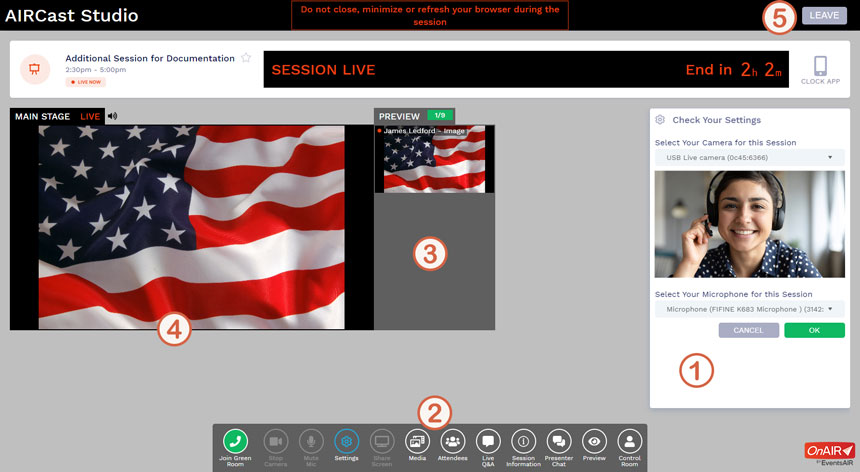
Below are descriptions of certain parts of the Studio. Please refer to the numbered tokens that have been placed on the illustration when reading the descriptions.
1 The Settings Panel
The Settings Panel appears when you first enter the Studio. The purpose for its appearance is to ensure that your camera and microphone are functional, since as a presenter you must be able to be seen and heard by the event audience. Of course, your equipment was checked when you logged into the OnAIR portal, but entering the Studio triggers another check just to be sure. If all is well with your camera and microphone, click the OK button to dismiss the panel. You can open the Settings Panel at any time after entering the Studio if, for example, you need or want to change your audio/video setup. More information about your video and audio set-up will be presented on subsequent pages of this website.
CRITICAL
If you see in the Settings Panel that your camera and/or microphone are not listed or do not appear to be functional, you must perform the actions listed below IMMEDIATELY! Try each of the actions in the order they are listed, and move on to the next if an action does not resolve the problem.
- Click/tap the drop-down selectors to ensure that the devices you have plugged into your computer are the ones listed in the selectors.
- Click/tap the Cancel button in the Settings panel; unplug your camera and microphone; plug the camera and microphone in again; click/tap the Settings button in the Control Panel to open the Settings panel again. Verify that your devices are now working.
- Click/tap the Leave button (Number 5 on the illustration) to leave the Studio and return to the Timeline. Click/tap the Live Support link in the upper right corner of the OnAIR window in your browser. Wait for the Live Support technician to respond to your request for help.
2 The Control Panel
The Control Panel shows buttons that control functions that are available to you in the Studio. We'll discuss the Control Panel in detail on subsequent pages.
3 The Preview Panel
The Preview Panel contains "thumbnails" (small images) of content that is ready to be put onto the Main Stage. Thinking back to our television studio comparison, you should consider the Preview Panel to be the backstage of the studio. Content is generally moved into and out of the Preview Panel under the control of the Studio staff; however, there are some exceptions. For example, when a presenter is requested to share his/her computer screen in order to bring that content into the Preview Panel, the request is made by the Studio staff, but the action to actually share the screen must be performed by the presenter. Screen sharing will be discussed in detail on subsequent pages.
4 The Main Stage
Content (video from presenters' cameras, pre-recorded video, shared computer screens, and more) placed on the Main Stage is sent out in real time to all of the event participants who have joined the session. The content can be arranged in numerous ways. For example, a PowerPoint slide can occupy the entire stage, or it can be shown beside the presenter presenting the slide. A presenter's camera video can occupy the entire stage, or video from multiple presenters can be shown simultaneously. The important thing for presenters to know is that decisions about what and how content is shown on the Main Stage is controlled solely by the Studio staff. Presenters do not need to concern themselves about managing the content being sent out to the audience — with one exception. If your presentation contains slides, such as a PowerPoint slide deck, you are in charge of changing slides as you make your presentation.
Quick Tip
During a session for which you are designated as a presenter, the only way for you to view the proceedings of the session is to be in the Studio and watch the proceedings on the Main Stage.
5 The Leave Button
The Leave Button provides a way for you to leave the Studio. Upon leaving, you will be returned to the Timeline.
Quick Tip
When you arrive on the Timeline after leaving the Studio during a session for which you are designated as a presenter, please be aware of the following:
- If you attempt to join the session during which you left the Studio by clicking the Join button on the session, you will be returned to the Studio (assuming the session has not ended). Why? Because once you have been designated as a presenter for a session, you will always have that designation for that session, and presenters are always put into the Studio when they join their session.
- If any sessions other than the one(s) for which you are designated as a presenter are either open or available for preview, you can enter those sessions at any time. You will be simply an audience member for such sessions.
Next, let's get you into the Green Room!
Click/tap the Next button to go to the next page; use the Back button to go back.


