Entering the Green Room
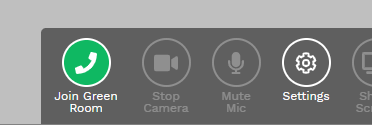
After you have verified that your camera and microphone are operating properly in the Studio, you must enter the Green Room. To do so, click or tap the green button located at the left end of the Control Panel. The button, labeled Join Green Room, is shown in the illustration below.
CRITICAL
Entering the Green Room is not optional. Until you enter the Green Room, the Studio staff do not know you have arrived in the Studio. They cannot see you, cannot talk to you, and cannot get you to where you need to be to give your presentation. Entering the Green Room is the first thing you must do after you have verified your video and audio upon entering the Studio!
When you activate the Join Green Room button, a message welcoming you to the Green Room will appear. After you have read the message, click/tap the OK button to dismiss it. The Green Room panel will then appear in the Studio. See the illustration below.
The Green Room experience
The Green Room experience in OnAIR is very much like the one you might expect at a real television studio — well, except for the fact that there are no drinks or snacks in the OnAIR Green Room! (Sorry.) When you enter the room, the Green Room Coordinator will likely start speaking to you. The Coordinator's job is to welcome you, to remind you about what will happen while you are in the Studio and what you must do to prepare for giving your presentation. The Coordinator will also give you any last minute information, and will answer questions you may have. The Coordinator will be in the Green Room with you, and will appear in the Green Room panel as either live video or a placeholder. You will be able to talk to the Coordinator — just speak into your microphone; however, do be sure you are not "talking over" someone else. The Green Room can become a very busy place, so more than one person talking at a time can cause considerable confusion. In fact, a good practice would be to use the Mute Mic button in your Control Panel to mute your microphone unless you are engaged in a conversation with the Coordinator.
Critical
Once you are in the Green Room, you will be prompted to complete the process of getting your presentation ready for delivery to the audience. Please be sure to visit the next page of this website, since you have a task that MUST be completed as soon as possible after you enter the Green Room.
After you have accomplished all of the setup required for your presentation (be sure you have read about what must be done — all described on the next page) you can just relax in the Green Room while waiting for the time of your presentation to draw near.
The illustration below shows the Studio with the Green Room open and occupied. Two presenters and the Coordinator are shown in the Green Room.
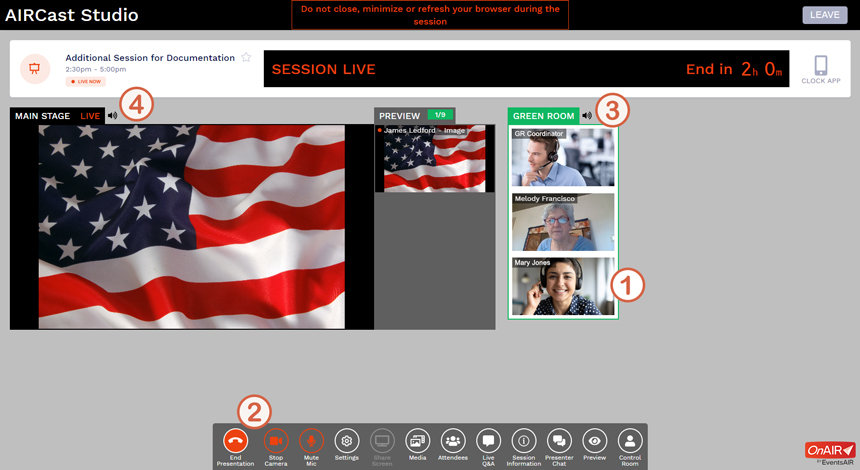
A number of important changes will occur in the Studio after you enter the Green Room. Please refer to the numbered tokens that have been placed on the illustration above when reading the information below.
1 The Green Room
When you enter the Green Room, your camera video will appear as a "thumbnail" (a small image) in the Green Room panel. You should be aware that this image is "live" — that is, whatever image is being captured and transmitted by your video camera will appear in the Green Room panel. Also, your audio — whatever sounds that are being captured and transmitted by your microphone — can now be heard by the Studio staff and by all other presenters who are also in the Green Room.
Although three people are shown in the Green Room in the illustration, the "population" of the Green Room can and will change as the session progresses. A thumbnail image will appear in the Green Room panel for every presenter who is currently in the Green Room. A presenter's image will disappear from the Green Room panel when that person is taken to the Preview Panel (backstage) or is taken to the Main Stage.
All persons in the Green Room can hear and talk to all other persons in the Green Room, although hearing can be affected by the small icon identified by Token 3 on the illustration. See below for more information.
Quick Tip
At some point, you will be informed by the Studio staff that preparations to take you onto the Main Stage are beginning. The staff will take you backstage (into the Preview Panel) at the appropriate time and will ultimately take you onto the Main Stage. When your time on the Main Stage is over, you may be taken backstage or you may be taken all the way back to the Green Room. Don't worry about all of these movements; they are handled entirely by the Studio staff. Just don't be alarmed as you see your thumbnail image moving from place to place in the Studio!
2 The Control Panel
The button at the left end of the Control Panel has changed from green to red, and the label on the button has also changed. Please see the CRITICAL section below regarding this button. Also, the two buttons (Stop Camera and Mute Mic) immediately to the right of the now-red button have turned red. Those two buttons will do exactly what they indicate they will do if you click the buttons; they will stop your video and/or audio. You should use these buttons with discretion. It would be a good practice to mute your microphone unless you are having a conversation with the Green Room staff, but you should un-mute your microphone as soon as you are moved backstage in preparation for giving your presentation. Remember...as a presenter, you must be seen and heard by the event attendees. If you disable your video or audio, you will not be able to fulfill your role as a presenter.
Critical
DO NOT click/tap/activate the red button at the left end of the Control Panel at any time. Although the label of the button is End Presentation, you will NOT need to use the button at any time while you are in the Green Room, Backstage, or on the Main Stage. The Studio staff will perform all actions at the proper times to end your presentation.
3 The Green Room Speaker Icon
Above the Green Room panel, you will see a small icon shaped like a loudspeaker. This icon controls the audio coming to you from the Green Room. Clicking/tapping the icon will toggle the audio off and on. You should not disable the Green Room audio, since doing so will prevent you from hearing cues that will be given to you in preparation for moving you to the Preview Panel (backstage).
4 The Main Stage Speaker Icon
Above the Main Stage, you will see a small icon shaped like a loudspeaker. This icon controls the audio coming to you from the Main Stage. Clicking/tapping the icon will toggle the audio off and on. You may want to mute the Main Stage audio if you are having a conversation with someone in the Green Room.
Next, let's get your presentation set up!
Click/tap the Next button to go to the next page; use the Back button to go back.


