
Going backstage (into Preview)
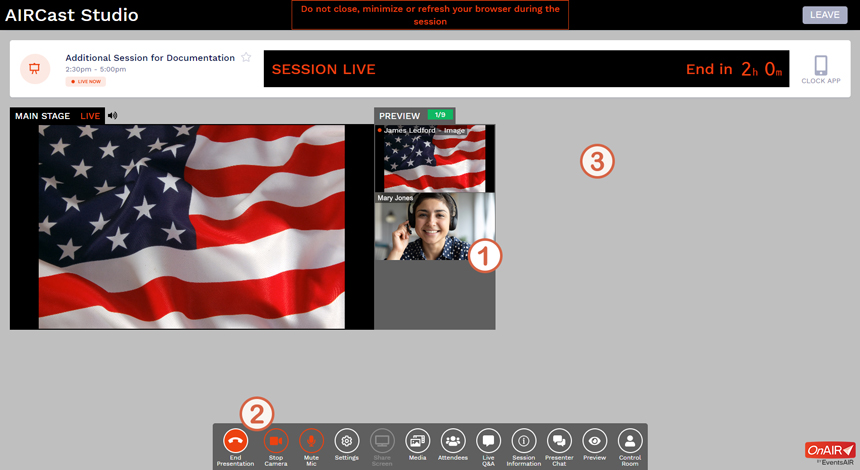
As the time for your presentation grows near, the Studio staff will move you into the Preview panel — like going backstage in a real television studio. When you arrive in Preview, your view of the Studio will look something like the illustration below.
CRITICAL
Whenever you are backstage (your thumbnail image appears in the Preview panel), you must not talk or make any sounds. Every sound picked up by your microphone will be heard by everyone in the audience; therefore, complete silence on your part while you are backstage is essential.
The backstage experience
When you are backstage (you are backstage when your thumbnail image appears in the Preview panel), you become someone who can be brought onto the Main Stage to participate in some way in the proceedings of the event — most likely to give your presentation, since you are a presenter. When you have completed your presentation, you will be taken backstage again, but perhaps not until you have participated in a question-and-answer period, or had a brief interaction with someone else on stage. After returning backstage, you may need to remain there in case the event host wants you to return to the stage — or you may be returned immediately to the Green Room. You don't need to worry about these movements; they will be handled entirely by the Studio staff.
As a presenter, you do have a task to perform quickly after you arrive backstage in preparation for giving your presentation. Please be sure you visit the next page of this website for essential information about this task.
As you can see in the illustration above, some changes occurred when you were taken backstage. Please refer to the numbered tokens that have been placed on the illustration when reading the information below.
1 The Preview Panel
Your thumbnail image (the video coming from your camera) has moved from the Green Room into the Preview panel. You have been taken backstage because you will be going onto the Main Stage shortly. Just like being in a television studio or in a Broadway theater, any sounds you make while you are backstage can be heard by the audience; therefore, as stated above in the Critical section, it is essential that you make no noise while you are backstage. That includes talking!
Quick Tip
While you are backstage, a member of the Studio staff will likely talk to you. Natually, your inclination will be to talk back to the staff member to respond, but please refrain from doing so! Remember...every sound you make while you are backstage will be heard by everyone in the audience.
Once you have returned to the Green Room, you can talk again. The Green Room Coordinator and all of the other people in the Green Room will be able to hear you.
2 The Control Panel
In the Control Panel, the three buttons at the left end of the panel have not changed. Unless some emergency arises (see the Quick Tip below), you should not change the state of any of these buttons.
Quick Tip
If some emergency occurs at your location while you are backstage — your children come into the room or your dog looks like she's getting ready to bark — you can take action to avert disaster (or embarrassment). You can mute your microphone. Click or tap the red Mute Mic button in the Control Panel.
Once the emergency has been resolved, don't forget to click the button again to restore your audio.
3 What happened to the Green Room?!
When you were moved backstage, you left the Green Room. Since you are no longer there, you cannot see the room or anyone in it. Not to worry; when you have finished your presentation and whatever post-presentation activities that are planned for you, you will likely be returned to the Green Room — which will then reappear in the Studio (with you in it!).
What's next?
As was mentioned above, you do have a task to perform soon after you arrive backstage. All of that is discussed on the next page, so please be sure you visit the page for this essential information. The Next button below will take you there.
Next, let's get your presentation ready to go!
Click/tap the Next button to go to the next page; use the Back button to go back.


