
Log into the OnAIR portal
The address (URL) of the OnAIR portal is contained in the email you received confirming your registraton. Look for your Personalized Link, which will appear as a normal URL (https://portalapp.mines.eventsair.com....) followed by a long string of letters and numbers. Click the link to open the portal in your browser. You can also copy‐and‐paste the entire link into your browser's address box if you prefer. By using your Personalized Link, you will be automatically logged into the portal.
About your profile information…
After logging in, you will be presented with a dialog that requests certain information for your profile — not all of which is required. You should ensure that your name is as you want it to be, but the other personal information is completely optional. However, you MUST ensure that you have scrolled down to the bottom of the dialog to the portion that allows you to set your camera and microphone. When you have completed the profile, click the Update and Close button.About the timeline…
After completing your profile, you should now be on the event's Timeline. An illustration of a portion of a sample timeline appears below: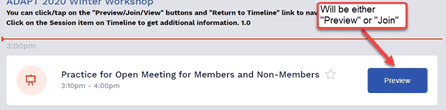
About the Studio…
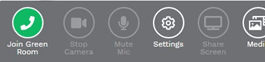
From this point on, you should think about the process as if you have been invited to a television studio to be interviewed and to present your material. Just as would happen in that situation, you must first enter the Green Room so you can check your hair, get some helpful instructions, and ask questions. To enter the Green Room, you MUST click the green button labeled "Join Green Room" that appears at the far left of the Control Panel you will see at the bottom of your browser window while you are in the Studio. An illustration of a portion of your Control Panel appears below:
About the Green Room…
Once you have entered the Green Room, the people "running the show" (the Studio staff) will be able to converse with you. They will give you some more information, and you can ask any questions you may have. Eventually, you will be moved to the Main Stage, where you will be seen and heard by the entire audience. Have fun!
The bare minimum...
It is best to participate in a practice session and to take some time to at least read over the information in the In-Depth path of this website, but if all else fails, please keep these points in mind when you join the OnAIR platform as a presenter:
- Use the same equipment for practice you will be using during your live presentation.
- Have your presentation on your local drive (if possible, in case of remote access interruptions).
- You can talk with anyone in the Green Room while you are there; your conversation will not be heard the audience. Please observe some restraint, however, and try not to talk while others are talking.
- The technical staff will move you around in the Studio, so there is no need for you to "end" your presentation or worry about where you are in the Studio.
- Once you are Backstage (in the Preview panel), remember not to speak, since any sound — including your voice — will be heard by everyone in the audience.
- Don't forget to share your slides/presentation once you have been moved Backstage. The Green Room Coordinator will also remind you to perform this task.
- If your presentation involves media, such as a video, other than or in addition to a PowerPoint (or similar) slide deck, you will need to specifically discuss with your practice session leader the process required to incorporate the media into the presentation.
- Know that you will be responsible for advancing your slides when on the Main Stage.
- Give a verbal cue to the technical staff when you are close to being done with your presentation on the Main Stage (so the staff can start questions/answers; remove you from the stage; etc).
Requirements and tips
Please be sure to read the Requirements and Tips page of this website before you attend a practice session — and definitely before you give your presentation! You'll find lots of useful information about your computer, your Internet connection, and your audio/video setup.
Want to explore something in more detail?
To learn more about any aspect of the OnAIR experience, feel free to use the Road Map or any of the links at the bottom of all of the pages in this website.
Click/tap the Back button to go back to the previous page.

